
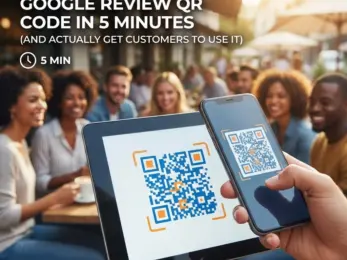
You've probably seen them everywhere by now, those little black-and-white squares on restaurant tables, at checkout counters, and on business cards. QR codes have made a serious comeback, and for small business owners looking to boost their Google reviews, they're kind of a game-changer.
But here's the thing: creating a QR code is the easy part. Getting your customers to actually pull out their phones and use it? That's where most businesses drop the ball.
Let's walk through how to set up a Google Review QR code in about five minutes, and more importantly, how to make sure it doesn't just collect dust on your counter.
WHY QR CODES WORK FOR GETTING REVIEWS
Before we dive into the how-to, let's talk about why this matters.
The biggest barrier to getting more Google reviews isn't that your customers don't like you. It's friction. People are busy. They forget. They don't know where to go. By the time they get home, that amazing experience at your shop is already competing with dinner plans and Netflix.
A QR code removes most of that friction. One quick scan, and your customer lands directly on your Google review page. No searching, no typing, no guessing. It takes them maybe 30 seconds to leave a review instead of five minutes.
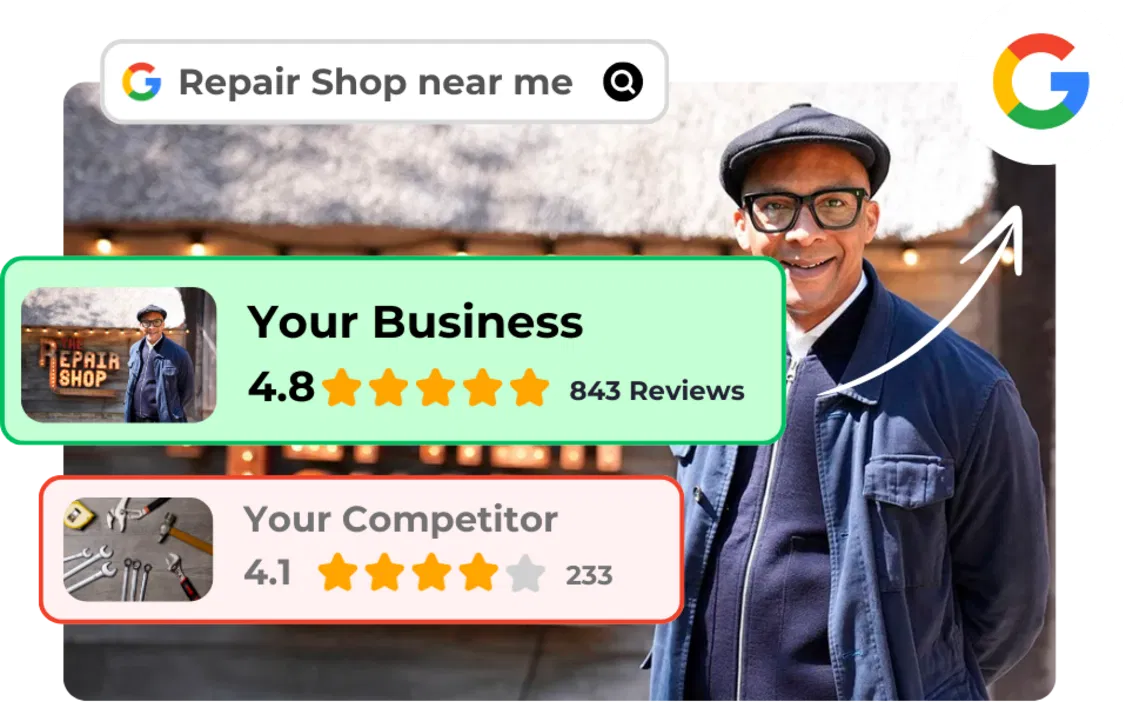
And those extra reviews? They add up fast. More reviews mean better visibility in local searches, more trust from potential customers, and ultimately, more business walking through your door.
THE DIY METHOD: CREATE A QR CODE IN 5 MINUTES
If you want to create a Google Review QR code yourself, here's the quick rundown:
Step 1: Grab Your Google Review Link (About 1 Minute)
Sign into your Google Business Profile at business.google.com. Look for the "Get more reviews" section or the "Share review form" button. Click it, and you'll get a direct link to your review page. Copy that link.
Step 2: Generate the QR Code (About 2 Minutes)
Head over to any free QR code generator, there are dozens out there. Paste your Google review link into the URL field and hit generate. Done.
Step 3: Customize It (Optional, 1-2 Minutes)
Most generators let you add your brand colors or logo. You can also add a call-to-action like "Scan to leave a review." This step is optional, but it makes your QR code look more professional.
Step 4: Download and Print (About 1 Minute)
Download the QR code as a PNG file (it works best for printing) and save it. Now you can add it to receipts, signage, business cards, or anywhere else customers will see it.
Simple enough, right?
THE PROBLEM WITH DIY QR CODES
Here's where things get a little tricky.
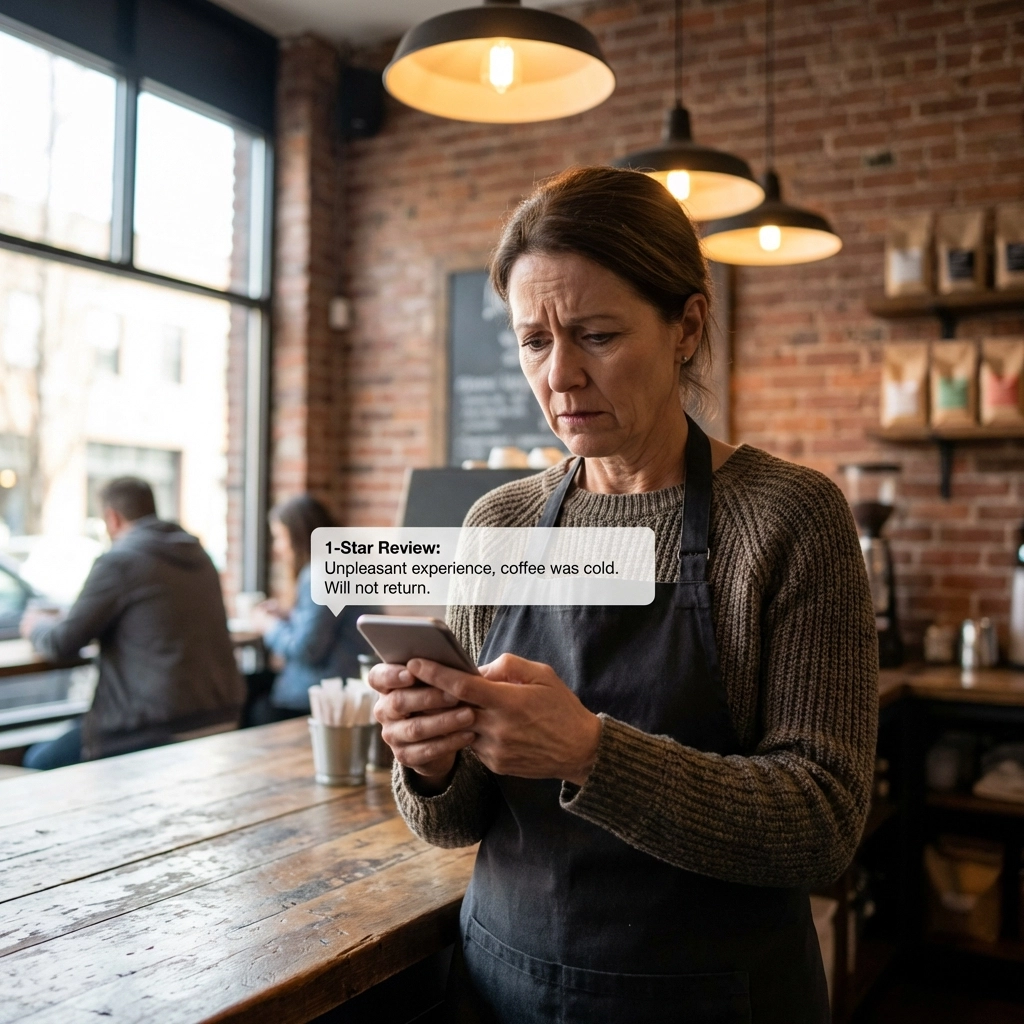
A standard QR code that links directly to Google is fine for happy customers. But what about the ones who aren't thrilled? Maybe their order took too long, or there was a small mix-up. They're still going to scan that code, and now they've got a direct path to leave a negative review on your public Google profile.
Once that review goes live, it's out there for everyone to see. And we all know how much weight a single bad review can carry, especially for small businesses.
This is why a lot of business owners hesitate to promote their review links too aggressively. They want more reviews, but they're worried about opening the floodgates to complaints.
HOW TO ACTUALLY GET CUSTOMERS TO USE YOUR QR CODE
Let's say you've got your QR code ready to go. Now what?
Put It Where They'll See It
This sounds obvious, but placement matters. The best spots are where customers are already pausing or waiting:
- At the checkout counter
- On receipts or invoices
- On table tents (for restaurants)
- Near the exit door
- On business cards or flyers
If your QR code is tucked away in a corner or buried on a cluttered poster, people will walk right past it.
Add Clear Instructions
Don't assume everyone knows what to do with a QR code. A simple line like "Scan here to share your experience" or "Tell us how we did, scan to review" goes a long way.
Ask at the Right Moment
Timing matters. The best time to ask for a review is right after a positive interaction. If a customer just complimented your service, that's your window. Point them to the QR code while they're still feeling good.
Make It Fast
The whole point of a QR code is speed. When someone scans it, they should land directly on your review form, not your homepage, not a generic landing page. Test your QR code on different phones before you print a bunch of them.
THE SMARTER WAY: LET BRAND DEFENDER HANDLE IT
Okay, so the DIY method works. But there's a smarter approach that saves you time and protects your reputation at the same time.
When you sign up for Brand Defender, we automatically create a QR code for your business. But here's the key difference: it doesn't link directly to Google.
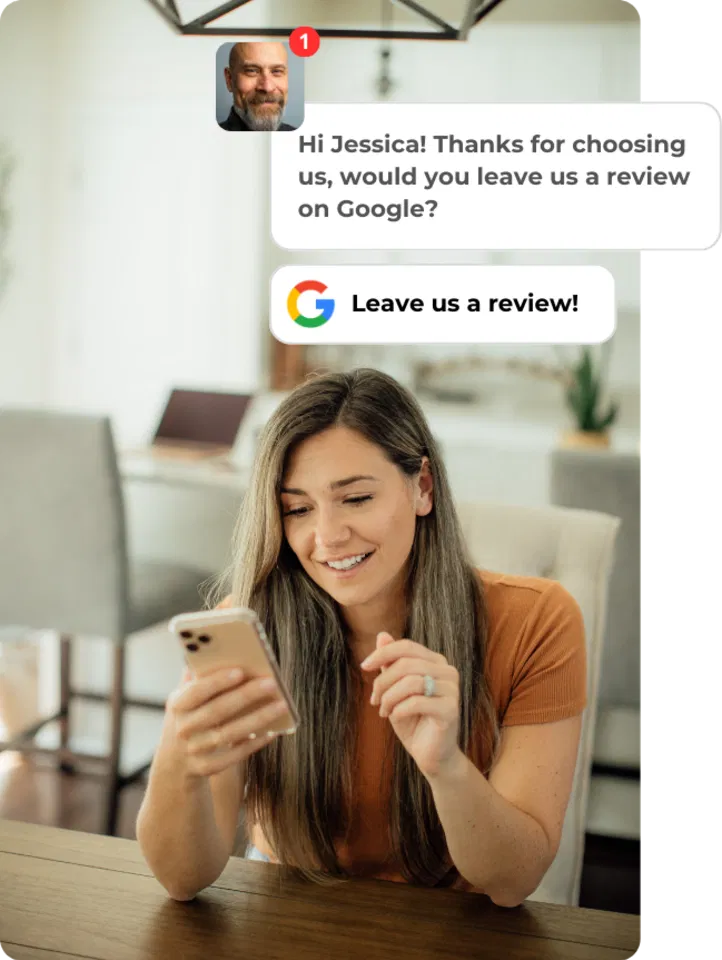
Instead, it links to our platform, where customers can share their feedback first. Happy customers get guided straight to your Google review page, where they can leave that glowing five-star review. But if someone's unhappy? Their feedback comes to you privately, giving you a chance to address the issue before it ever becomes a public review.
Think of it as a filter between your customers and your Google profile.
What This Means For Your Business:
- More positive reviews show up on Google
- Unhappy customers get heard without damaging your public reputation
- You stay in control of how feedback flows
- No need to set up QR codes manually: it's done for you
It's a small change in workflow, but it makes a big difference in how your online reputation builds over time.
If you're curious how this compares to handling reviews on your own, we broke it down in our post on how to get more Google reviews without being pushy.

QUICK TIPS FOR MAXIMIZING YOUR QR CODE
Whether you go the DIY route or use Brand Defender's built-in QR code, these tips will help you get more scans:
- Test before you print. Scan your QR code from both iPhone and Android to make sure it works.
- Keep it simple. Don't clutter the area around your QR code with too much text or graphics.
- Use high contrast. Black on white works best for scanability.
- Refresh your placement. If your QR code has been in the same spot for months, people might start ignoring it. Move it around occasionally.
- Track your results. Some QR generators let you see how many scans you're getting. Use that data to figure out what's working.
THE BOTTOM LINE
Getting more Google reviews doesn't have to be complicated. A simple QR code can remove the friction that stops most customers from leaving feedback. Set it up in five minutes, place it where people will see it, and make the process as easy as possible.
But if you want to go a step further: and protect your reputation while you're at it: Brand Defender takes care of the heavy lifting. We create your QR code automatically, filter feedback so only the good stuff hits Google, and give you a chance to fix problems before they go public.
Either way, the key is to start. Every review you collect is another vote of confidence for your business. And the businesses that make it easy to leave reviews? They're the ones showing up first in local searches.
Ready to take control of your online reputation? Learn more at branddefender.co.